Workflows is an automation platform from Text that connects different apps and services to automate tasks. Instead of building custom applications, you create workflows that respond to events and perform actions automatically — and Text hosts everything for you.
Core concepts
Every workflow consists of two parts: a trigger (the event that initiates the workflow) and actions (the tasks it performs).
For example, when a chat receives a bad rating in LiveChat, your workflow can automatically pull the chat transcript, create a HelpDesk ticket with the details, and send a Slack notification to your support manager.
Common use cases include:
- Creating support tickets when specific events occur
- Routing chats to appropriate agents based on keywords or customer data
- Syncing customer data between LiveChat and CRMs like HubSpot
- Sending notifications to Slack when urgent issues arise
- Analyzing chat sentiment with AI to prioritize responses
Working with variables
Variables capture outputs from previous workflow steps. When an action completes — for example, “Get chat details” — it returns data you can use as variables in later steps.
To use these variables in a later step, click the {⋯} button next to any input field. Common patterns include pulling customer email from chat to create HubSpot contacts, inserting chat transcripts into ticket messages, or including ticket IDs in Slack notifications.

Building your first workflow

Once enabled in your profile, you will be able to access Workflows inside the application under the “Automate” section.
Let’s create a workflow that creates a HelpDesk ticket when a chat gets a bad rating.
Step 1: Create a new workflow
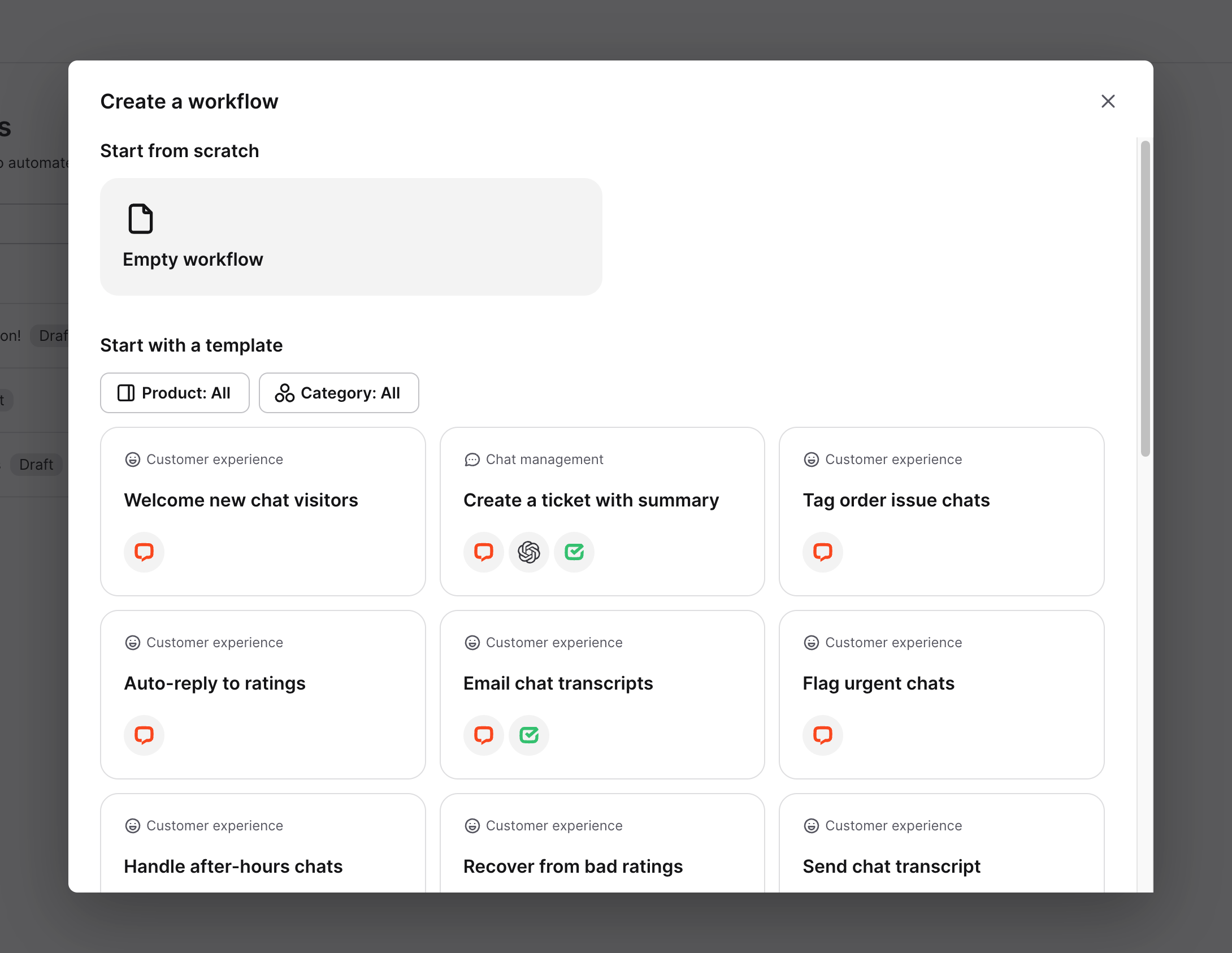
Go to the Workflows section, click “Create workflow” in the upper right corner, and choose “Empty workflow”.
Step 2: Add a trigger
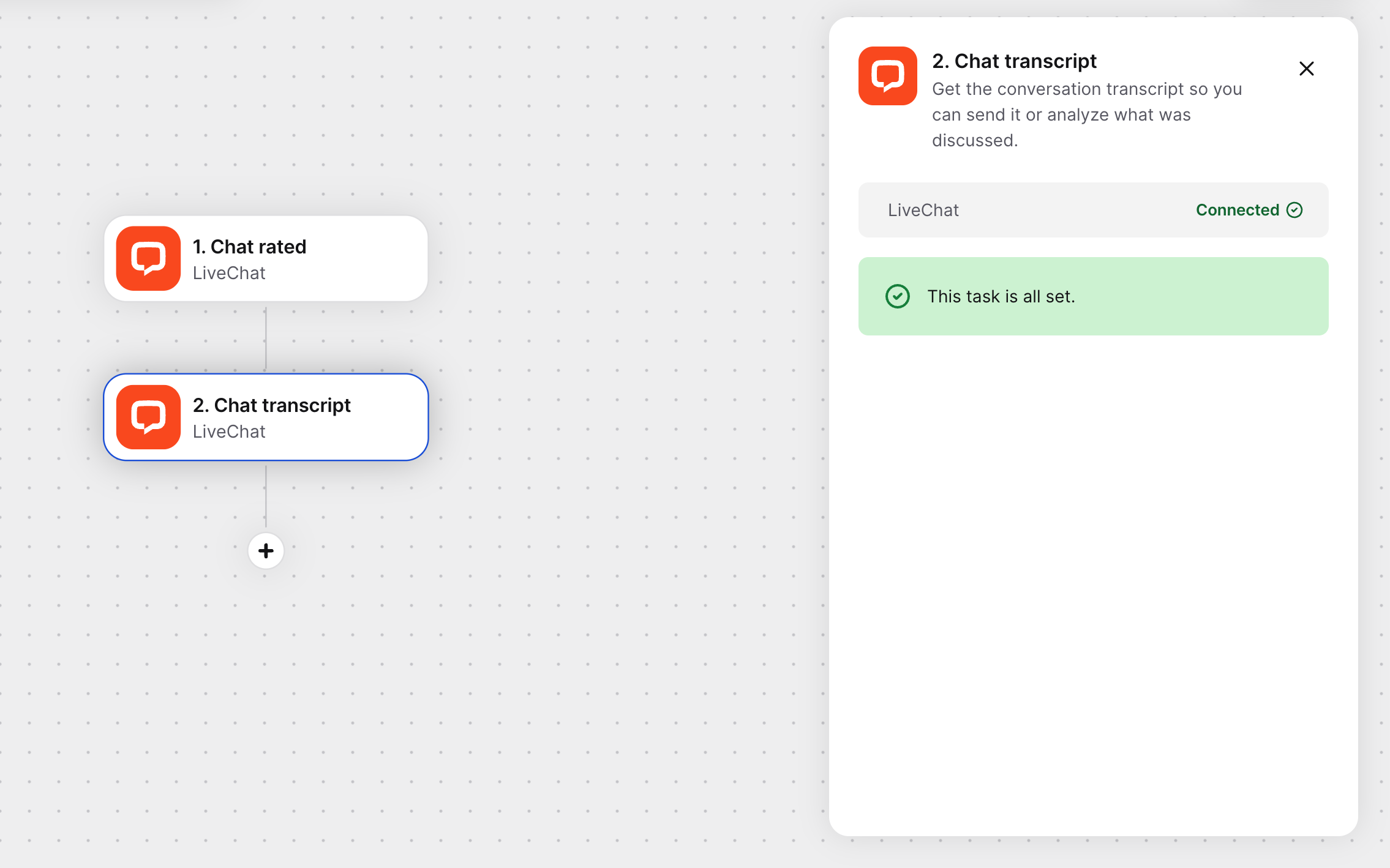
Click “+ Add trigger” and select LiveChat from the application list. Choose “Chat rated” as the trigger event, then, in the trigger’s parameters, set Rating to “Bad.”

Step 3: Pull the data you need
Click “+ Add action” and select LiveChat again. Choose “Get chat transcript” as the action. This pulls the customer information you’ll need for the ticket.
Step 4: Create the ticket
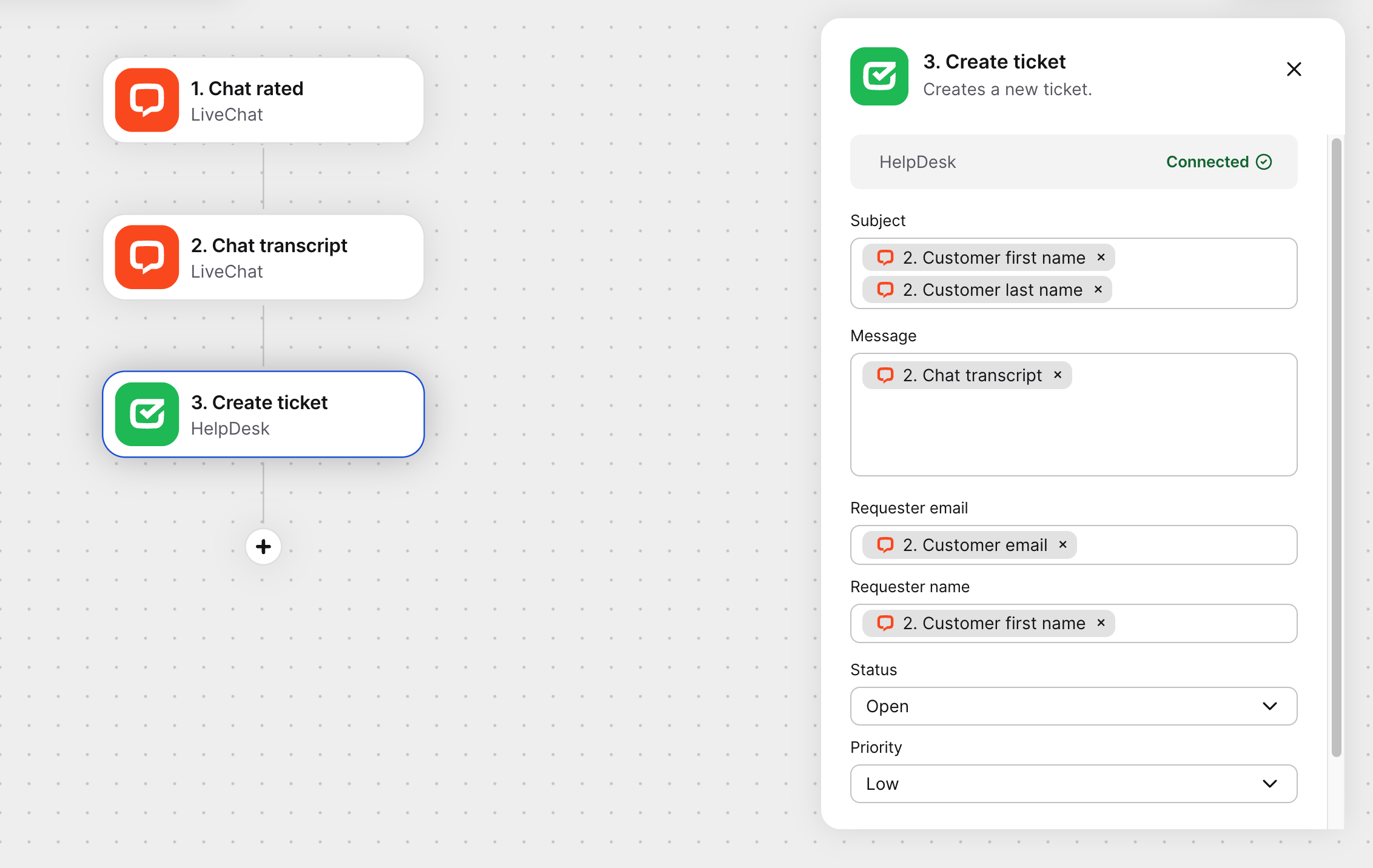
Click “+” and select HelpDesk. Choose “Create ticket” as the action. In the action configuration, fill in the ticket details using variables from the previous actions. Click the {⋯} button next to the input fields to insert data, such as the chat ID, customer name, or the chat transcript itself.
Step 5: Publish
Click “Publish” and give your workflow a descriptive name like “Create ticket for bad chat ratings.” Your workflow is now live.
Workflow statuses
Workflows have three statuses:
- Draft - Saves automatically when you exit without publishing.
- Inactive - Workflow is disabled and won’t run.
- Active - Workflow is enabled and running.
Before activation, the system validates your workflow to ensure you’ve configured everything correctly — you’ll see error indicators in any actions you need to fix.
Triggers and actions
You’ll find all available triggers and actions under the “+ Add trigger” and “+ Add action”. Workflows supports manual triggers, scheduled triggers, and event-based triggers from LiveChat, HelpDesk, and external services like Mailchimp, HubSpot, and Slack.
Actions include built-in workflow controls (such as conditional logic, parallel execution, and delays), LiveChat and HelpDesk operations, and integrations with external services, including OpenAI for text analysis.
Conditional logic
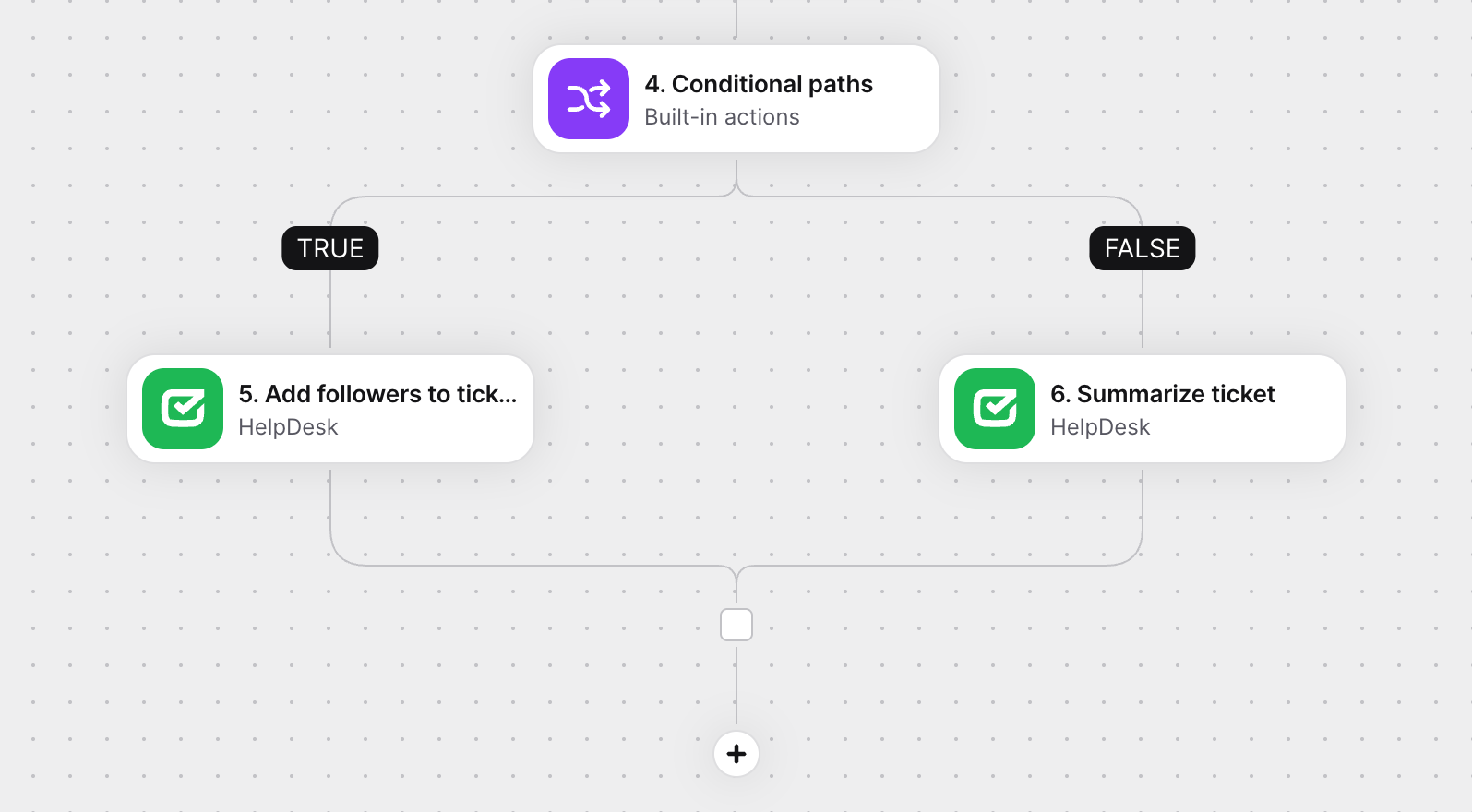
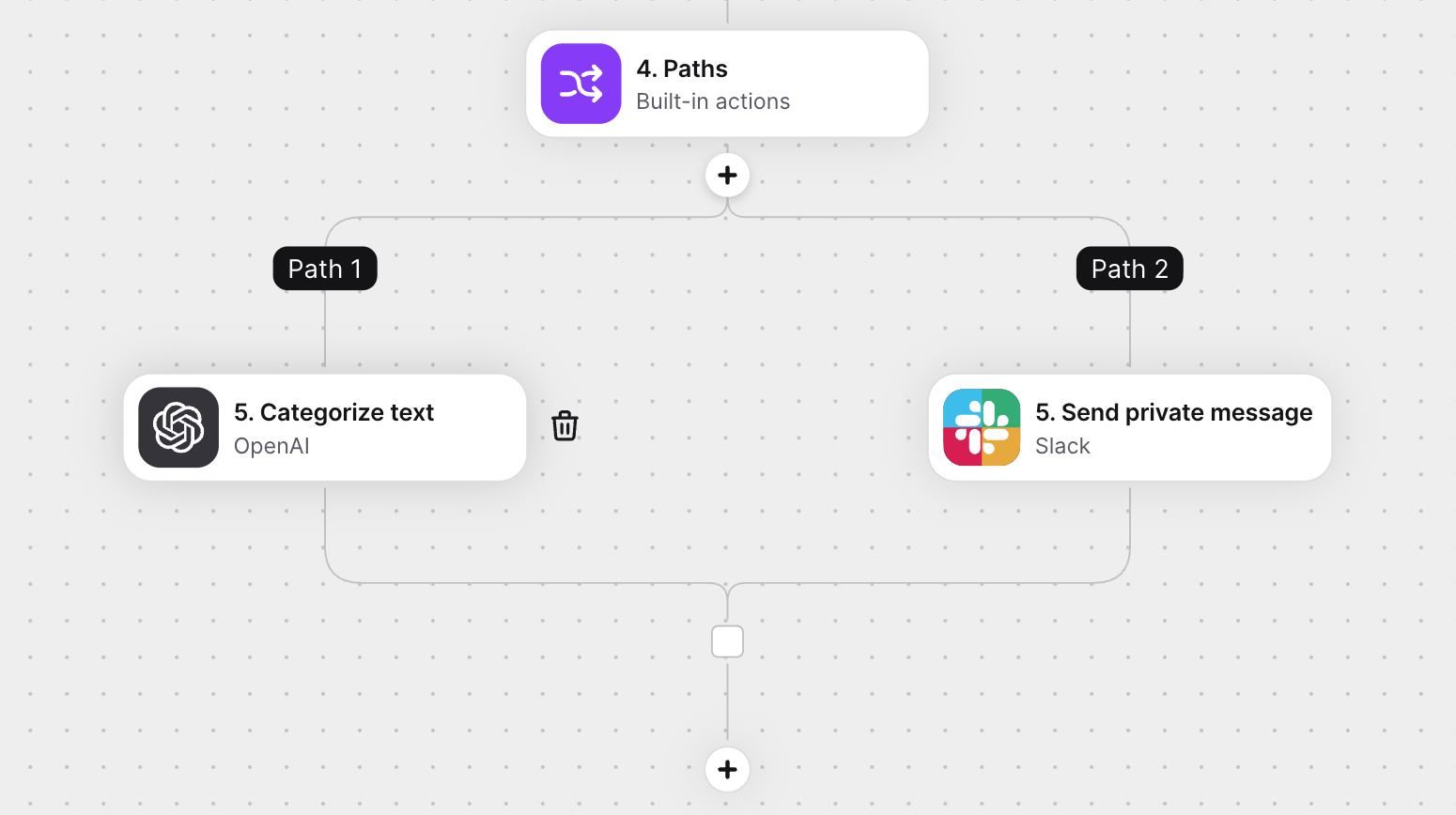
Use “if/then” statements to create different paths based on conditions. For example, you could analyze ticket sentiment with OpenAI, then route negative tickets to senior support with high priority, neutral tickets to general support, and positive tickets to a feedback collection list.
To set this up, add “Conditional paths” from “Built-in actions”, define your conditions, and add different action sequences to each branch.
Parallel execution
Run multiple actions simultaneously, rather than sequentially. For example, when a high-value customer starts a chat, you could send a Slack notification to sales, create a HubSpot activity record, and tag the chat as “VIP customer” all at the same time.
Security and permissions
Workflows inherits your permissions from each connected service. If your account has agent permissions, you can only perform agent-level actions. Admins have full access within their service scope.
When connecting external services, you’ll be prompted to authorize Workflows to access them. Once authorized, workflows run with the permissions you have for that service.
Troubleshooting
You can access execution logs to view when workflows ran, which triggers activated them, which actions ran, their success or failure status, and any error messages.
If your workflow won’t publish or activate:
- Check for validation errors in actions configurations
- Verify you’ve filled all required parameters
- Ensure you have proper permissions for all actions
If actions fail during execution:
- Confirm your authentication credentials are valid
- Verify mapped variables contain expected data
- Check that external services are accessible
If the workflow executes but produces wrong results:
- Review your variable mappings between tasks
- Check your conditional logic conditions
- Test with different input scenarios
Frequently asked questions
1. Do I need coding skills?
No, Workflows is a visual no-code builder. Understanding basic logic (if/then, variables) helps but isn’t required.
2. Can I collaborate with team members?
Currently, workflows are visible to everyone in your organization, but only the author can edit them.
3. What happens if an external service is unavailable?
The workflow fails for that execution. Check the execution logs to see failure details and retry manually if necessary.
4. Can I test without affecting live data?
Yes, use manual triggers and test with sample data. Create test accounts in connected services to avoid impacting production.